
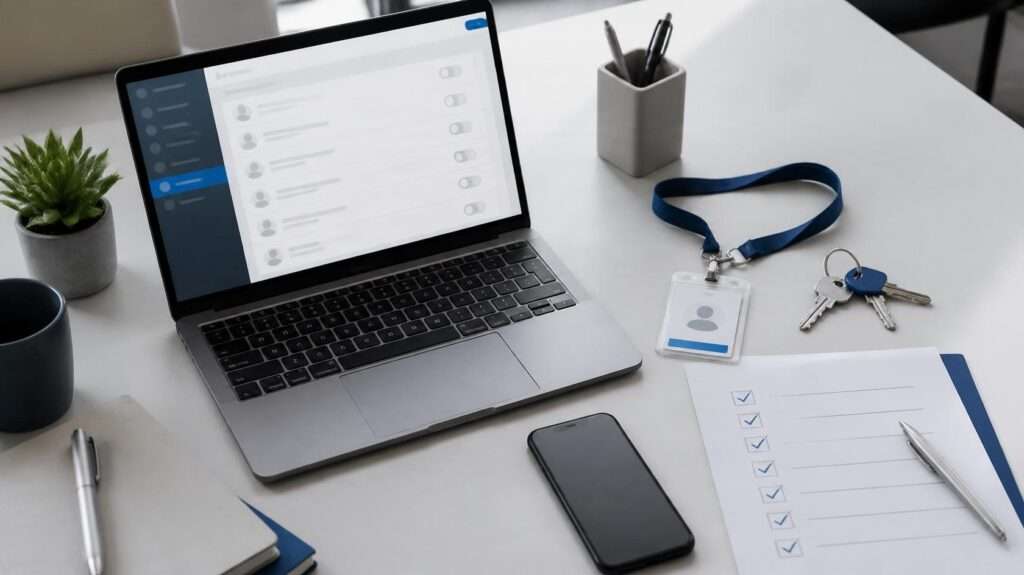
An employee IT offboarding checklist protects your business on the day someone leaves. Most small businesses handle the paperwork well. Final pay, benefits, and the exit interview all get done. However, the IT side often gets missed.
That gap is expensive. In a 2022 Beyond Identity survey, 83% of former employees said they still had access to a previous employer’s accounts. Some used it to read company email or take files.
This guide gives office and operations managers a practical checklist. It covers what to do before the last day, on the last day, and in the weeks after. You do not need an IT department to follow it.
Why IT Offboarding Fails in Small Businesses
Offboarding rarely fails because someone made a bad decision. Instead, it fails because nobody owns it.
HR handles the paperwork. The manager handles the handover. Meanwhile, the employee’s accounts stay active because IT was never told. In small offices, there is often no IT person to tell.
Cloud tools make this worse. A typical employee now uses ten or more business apps. Each one has its own login, and many sit outside your main email system. As a result, closing one account does not close them all.
That is why a written employee IT offboarding checklist matters. It turns a forgotten task into a repeatable process.
Before the Last Day
Good offboarding starts before the employee leaves. These steps prevent surprises later.
List every account the employee uses. Start with email and Microsoft 365 or Google Workspace. Then add the CRM, accounting software, file sharing, and project tools. Finally, check social media, vendor portals, and your website admin.
Identify shared passwords. Shared logins are the most common gap. If the employee knew a shared password, plan to change it.
Plan the handover of files and email. Decide who receives their documents and ongoing conversations. Also decide whether their mailbox should forward to a manager for a set period.
Check company devices. Record every laptop, phone, tablet, and security key assigned to them. In addition, note any personal devices with company email installed.
Agree on timing. For most departures, access should end at the close of the last working day. For sensitive or difficult exits, it should end before the conversation happens.
On the Last Day
This is the most important part of the employee IT offboarding checklist. Complete these steps in order.
1. Disable the main account
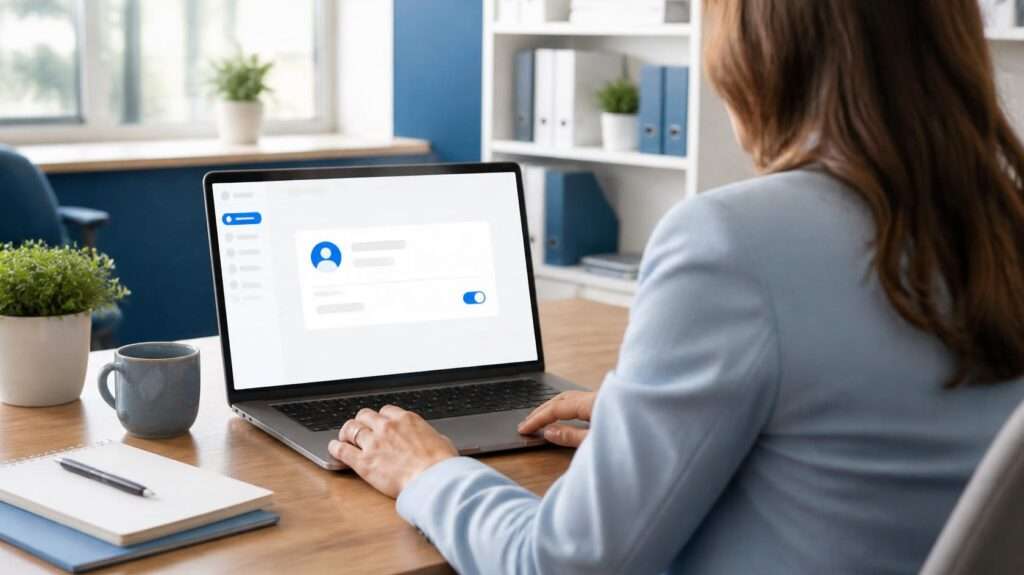
Disable the employee’s Microsoft 365 or Google Workspace account first. This single step blocks many connected apps that use single sign-on. Do not delete the account yet. Disabling it keeps the data available.
2. End active sessions
A disabled password does not always end existing sessions. Therefore, sign the user out of all devices from the admin console. Also revoke app passwords and remove any multi-factor authentication devices.
3. Close accounts outside your main system
Next, work through the list you prepared. Close or transfer access to the CRM, accounting software, file sharing, and other business apps. Remove the user from shared folders and team channels as well.
4. Change shared passwords
Change every shared password the employee knew. This includes Wi-Fi, alarm codes, door codes, and shared admin accounts. A password manager makes this step much faster.
5. Collect company devices

Collect laptops, phones, keys, badges, and security tokens. Then confirm each item against your asset list.
6. Remove company data from personal devices
If the employee used a personal phone for work, remove company data from it. Mobile device management tools can do this remotely. Without them, ask the employee to remove the accounts while you watch.
After the Employee Leaves
Offboarding does not end on the last day. A few follow-up steps protect your data over the next weeks.
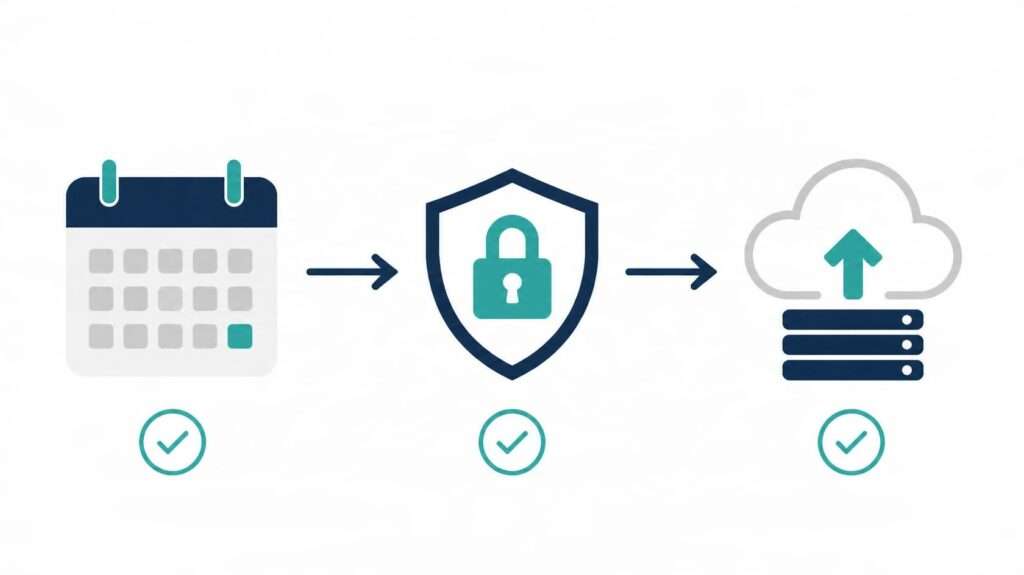
Preserve their data. Back up the mailbox and files before you remove any licenses. Legal or client questions often come up months later.
Set an email plan. Forward the mailbox to a manager, or set an auto-reply with a new contact. Keep this in place for 30 to 90 days, then review it.
Wipe returned devices. Back up anything needed, then reset the laptop or phone before giving it to someone new.
Remove unused licenses. Unused licenses cost money every month. So, cancel or reassign them once the data is safe.
Review access logs. Finally, check sign-in reports for the following two weeks. Any attempt to use the old account should be investigated.
The Employee IT Offboarding Checklist at a Glance
| Stage | Task | Done |
|---|---|---|
| Before | List all accounts and apps | ☐ |
| Before | Identify shared passwords | ☐ |
| Before | Plan file and email handover | ☐ |
| Before | Record assigned devices | ☐ |
| Last day | Disable Microsoft 365 or Google Workspace account | ☐ |
| Last day | Sign out of all sessions and remove MFA devices | ☐ |
| Last day | Close access to other business apps | ☐ |
| Last day | Change shared passwords and codes | ☐ |
| Last day | Collect devices, keys, and badges | ☐ |
| Last day | Remove company data from personal devices | ☐ |
| After | Back up mailbox and files | ☐ |
| After | Set email forwarding or auto-reply | ☐ |
| After | Wipe and reassign returned devices | ☐ |
| After | Remove or reassign licenses | ☐ |
| After | Review sign-in logs for two weeks | ☐ |
Common Mistakes to Avoid
Deleting the account too early. Deleted accounts can take their email and files with them. Disable first, back up, and delete later.
Forgetting apps outside Microsoft 365. Many tools have their own logins. These are the accounts most often left open.
Ignoring shared credentials. Changing the employee’s password does nothing if they know the Wi-Fi or the shared admin login.
Treating every exit the same. A friendly retirement and a sudden termination need different timing. For difficult exits, remove access first.
When to Get Help With Offboarding
This employee IT offboarding checklist works well for small teams. Still, it depends on someone knowing every account, device, and password in the business.
That is hard without a clear record of your systems. For many Glendale businesses, it is easier to have an IT partner handle the process. With IT support services, account and device changes are done the same way every time. In addition, they are documented for later review.
Offboarding also connects to security. Former employee access is a real risk, and it belongs in your wider cybersecurity plan. For businesses that want both handled together, managed IT services cover user management, device tracking, and access reviews as ongoing work.
Finally, make sure departing employees’ data is protected before anything is removed. Our backup and disaster recovery services keep mailboxes and files recoverable.
Talk to Our Team about setting up a reliable offboarding process for your business.
Frequently Asked Questions
What should an employee IT offboarding checklist include?
It should cover account access, shared passwords, company devices, data handover, and follow-up checks. The most important step is disabling the main email account on the last day.
When should a former employee’s access be removed?
For most departures, access should end at the close of the last working day. For sensitive exits, remove access before the employee is told.
Should I delete a former employee’s email account?
Not right away. Disable it first, back up the data, and forward the mailbox. Delete it only after the data is safe and no longer needed.
How do I remove company data from a personal phone?
Mobile device management tools can remove company data remotely. Otherwise, ask the employee to remove work accounts while you watch.
Who should handle IT offboarding in a small business?
One person should own it. That can be an office manager with a written checklist or an IT provider that manages user accounts.